


Free Online Video Editor
Engage and inspire with a video that stands out. Create on the go using Canva’s free video editor, no software installation required.
But first, cookies 🍪
We use essential cookies to make Canva work. We’d like to use other cookies to improve and personalise your visit, tailor ads you see from us on Canva and partner sites, and to analyse our website’s performance, but only if you accept. Learn more about your choices in our cookie policy.






+60M customers trust Canva Worldwide
Create a video
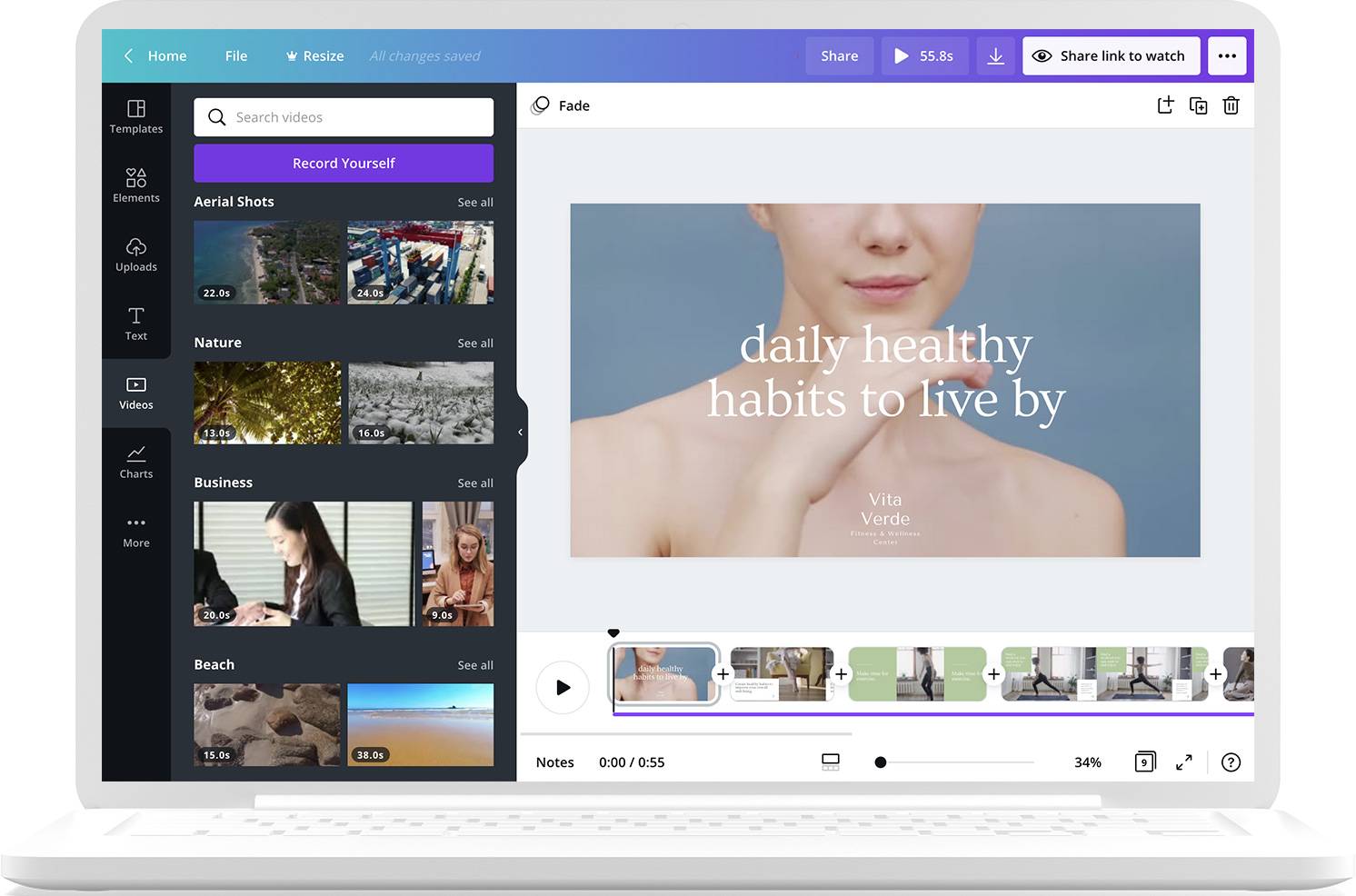
Start editing videos that look awesome and professional on any platform — whether it’s on a widescreen, tablet, or mobile device.


Animate with ease
Make your videos even more dynamic using animation. Use it on a single element for a subtle emphasis, or go full-force and add transitions to an entire frame.
All the assets you need

Beautiful watermark-free stock footage
Give more depth to your project using beautiful clips and B-roll footage with no watermarks from our library.

Impressive stock audio tracks
Make your video more moving with a great soundtrack.

Free icons, images, and illustrations
Add more personality to your content with free elements from our vast media library.
Create videos seamlessly on any device

Work on videos together
Collaborate on your videos in real-time or leave comments for your team.

Share your videos instantly
After editing your video, you can publish it on Instagram or any of your socials.

Easy media upload
Upload your own video and audio clips with a simple click.
The right size for every platform
With Magic Resize in Canva Pro, you can instantly resize your videos to look good on any platform like Youtube, Instagram, Facebook, TikTok, and more.
Start inspired
Get a headstart with free design templates you can customize in a few clicks.


The video editing app for every video creator

Social Media
Create and share creative videos that will resonate with your followers on social media.

Training, Explainer, How-to Videos
Create effective on-brand videos to educate and connect with clients and staff.

Product & Promo Videos
Scale up your marketing strategies with stunning videos that are easy to make.
All the features you need
Canva's free drag-and-drop design tools make it easy to create any design, fast!

Thousands of free video templates
Never run out of ideas with our selection of fully customizable and watermark-free templates.

Video timeline editing
Easily crop, trim, and splice your videos.
Millions of free images, icons, and graphics
Get access to our entire library of millions of photos, icons, graphics, media elements, and more.

Page and element animations
Add simple animation to any element or even the whole frame with just a few clicks.

Real-time collaboration
Create, collaborate, and get everyone on the same page, at the same time.

Pre-licensed stock footage and audio tracks
The best way to enrich and polish your video content.

In-app recording
Shoot and record yourself directly on our in-app tools and edit on the spot.
Text animations
Make your message stand out with text-specific animations.

Easy sharing and exporting tools
Spread the word with easy sharing and exporting options.

One-click magic resize (Pro)
Design once, resize to anything.
Access on any device
Jump from device to desktop—design how you work best!

Social media sharing
Create and publish to your social media accounts directly.
How to create and edit your videos
Browse and choose from our video templates or start from scratch.
Upload or pick from our library for stock videos, photos, audio narration, and music tracks into the timeline.
Crop, trim, rotate, and sync your footage and audio.
Customize the look and feel, animate for more dynamic transitions.
Preview the final cut, download as a watermark-free MP4, share a link to view, or post on your socials.
Your questions, answered
What is the best free online video editor?

The best free online video editor is the kind that offers a beginner-friendly browser-based tool, intuitive video editing features like splice, trim, cut, and more, plus a well-curated library of everything you need to make your video engaging from start to finish.
With the Canva Video Editor, you’ll access a great selection of free fonts and illustrations for title cards and text animations and pre-licensed stock footage and audio tracks for quick in-browser editing. You can also download free HD videos with no watermarks so you can share and present them with confidence and with no distractions.
How can I edit a video like a pro?

The good news is, you don’t need a complicated video editing software to edit like a pro. Make full use of a free online video editor like Canva’s video editing platform for starters and unleash your creativity. Here are a few practical tips to get you started:
Can I add my own audio tracks to video editing projects?
1. Turn your vision into a story with a beginning, middle, and end.
Yes, you can. Add music, narration, and even soundtracks for the full effect. Just upload your mp3 track on the video editing platform and drag and drop it to the project timeline.
2. Have an outline or a storyboard.
3. Brainstorm with a team to make your video richer and more creative.
How do I add animations in the video editor?
And if you don’t have the perfect soundtrack just yet, browse our music track library. We’ve got quite a few free and pre-licensed options for you to choose from.
4. Explore different camera angles and cuts.
To add animations, click on the specific element that you want to animate. Then click on the Animate button on the Effects toolbar and choose which type of animation you want to use. Clicking on each will show you a preview of what the effect will look like on your project. You can also choose to animate the whole frame by clicking on Page Animations.
5. Enrich your existing footage with b-roll and stock video clips.
6. Use music to heighten the mood of your video.
How do I add background music to a video?
7. Organize your workflow by putting your materials into separate folders.
Simple: just upload your audio track, then drag and drop it to your project timeline. You can trim or extend the audio track depending on the length of your video. You can also choose a specific clip from it by hovering over the actual part of the track you want to use.
Do Canva videos have watermarks?
If you’re not satisfied with what you have, browse our audio track library. We’ve got thousands of pre-licensed stock audio you can use for free.
No, Canva videos do not have watermarks if you are using free elements, images, footage, and music as a Canva Free user. And if you are a Canva Pro user, your videos will not have any watermarks whether you are using free or paid elements.
Which browsers does the Canva video editor work best in?
To sum up, Pro or paid elements will only have watermarks on your videos if you're a Canva Free user.
Our online video editor works best in most web browsers like Google Chrome, Microsoft Edge, Safari, Firefox, and other Chromium-based browsers. We recommend that you update your browsers to their latest versions to ensure a smooth video editing experience.

Create a video in Canva
Learn how to make awesome videos in minutes.


How to start a successful YouTube channel
Fast-track your channel’s success with this comprehensive guide.
Discover more products


Free Online Video Editor
Engage and inspire with a video that stands out. Create on the go using Canva’s free video editor, no software installation required.


