


Enjoy presentations with Canva
Design, collaborate, and share presentations to help your team achieve any goal.
But first, cookies 🍪
We use essential cookies to make Canva work. We’d like to use other cookies to improve and personalise your visit, tailor ads you see from us on Canva and partner sites, and to analyse our website’s performance, but only if you accept. Learn more about your choices in our cookie policy.
Start inspired with professionally-designed templates
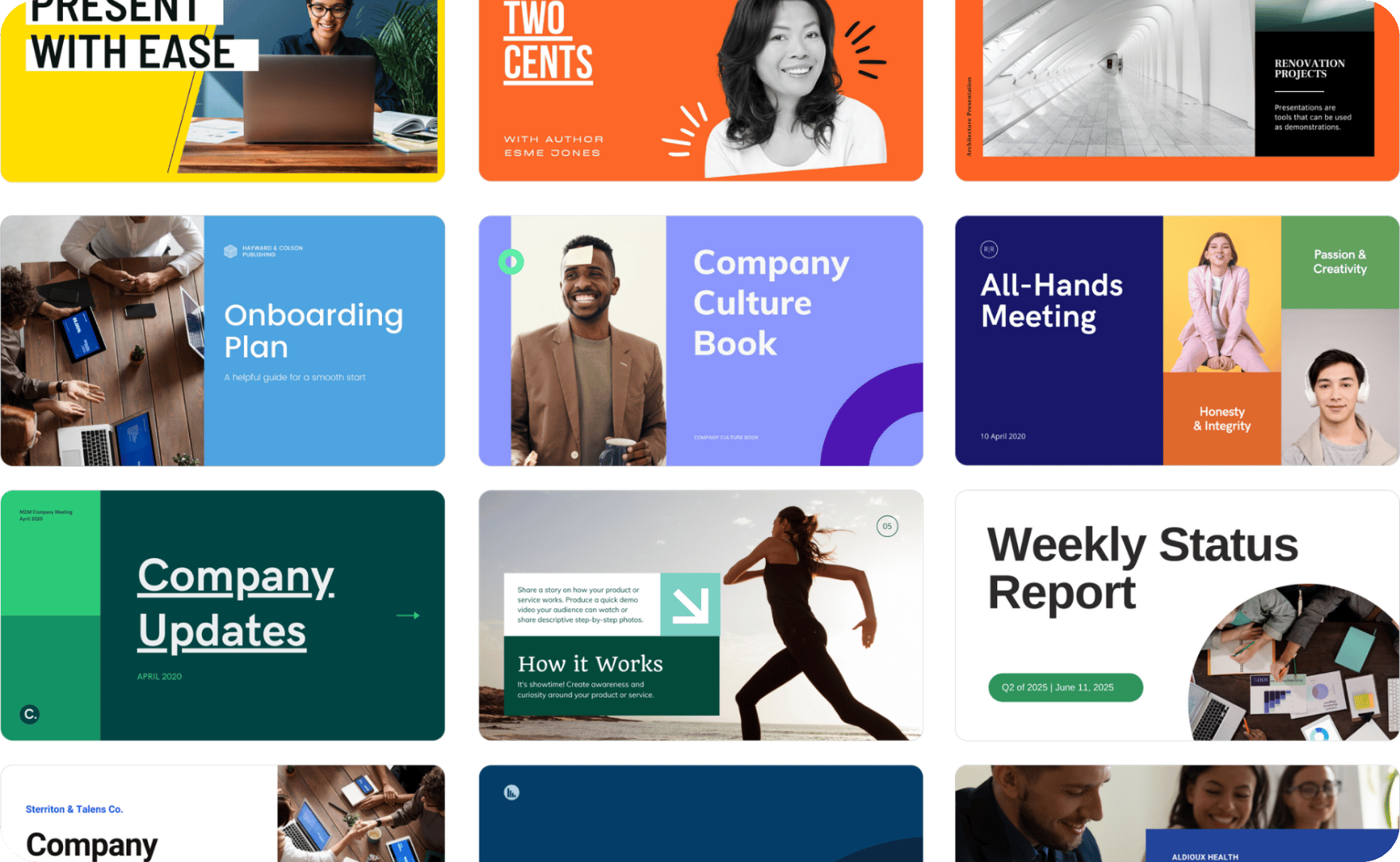
Never begin from blank. Canva has thousands of free, professional templates to help bring your best work to life, quicker. Plus, you can customize your slides with thousands of free images, videos, graphics, and more from our rich content library.
Presentations that work with you
Whether it’s a product pitch, conference keynote, or group assignment, you can customize any template to suit any project.



Create. Collaborate. Celebrate.
Empower every member of your team – whether it's small, big, local or global. Invite collaborators, clients, or co-presenters to design with you via a link or email. You can also comment and edit in real-time from any device.
Impress your audience, and yourself.
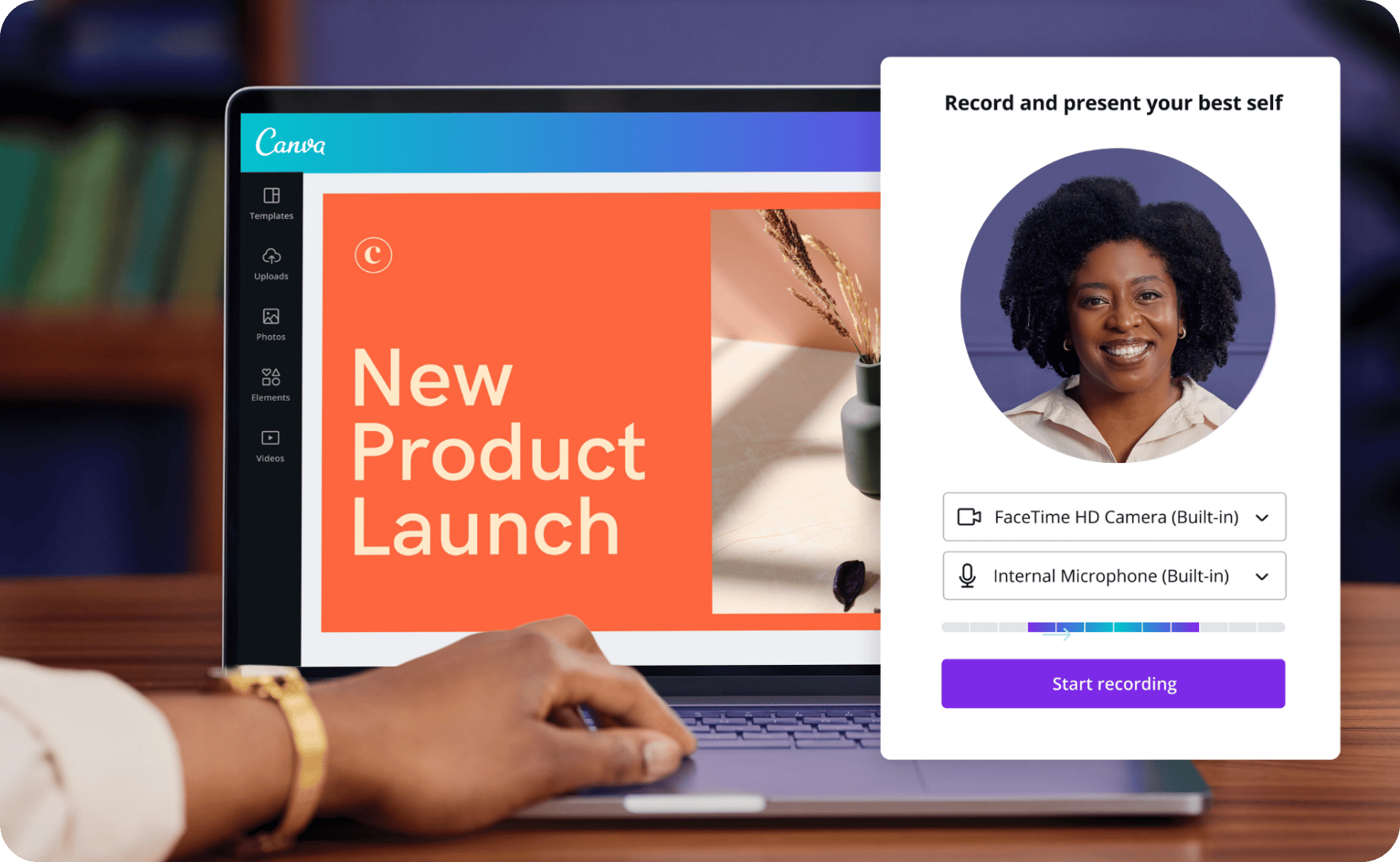
Want to make a lasting impact? Canva has plenty of ways to connect with your audience. Whether you’re sharing a link, recording a video presentation ahead of time, or presenting live, you’ll always deliver your best.
Share with pride
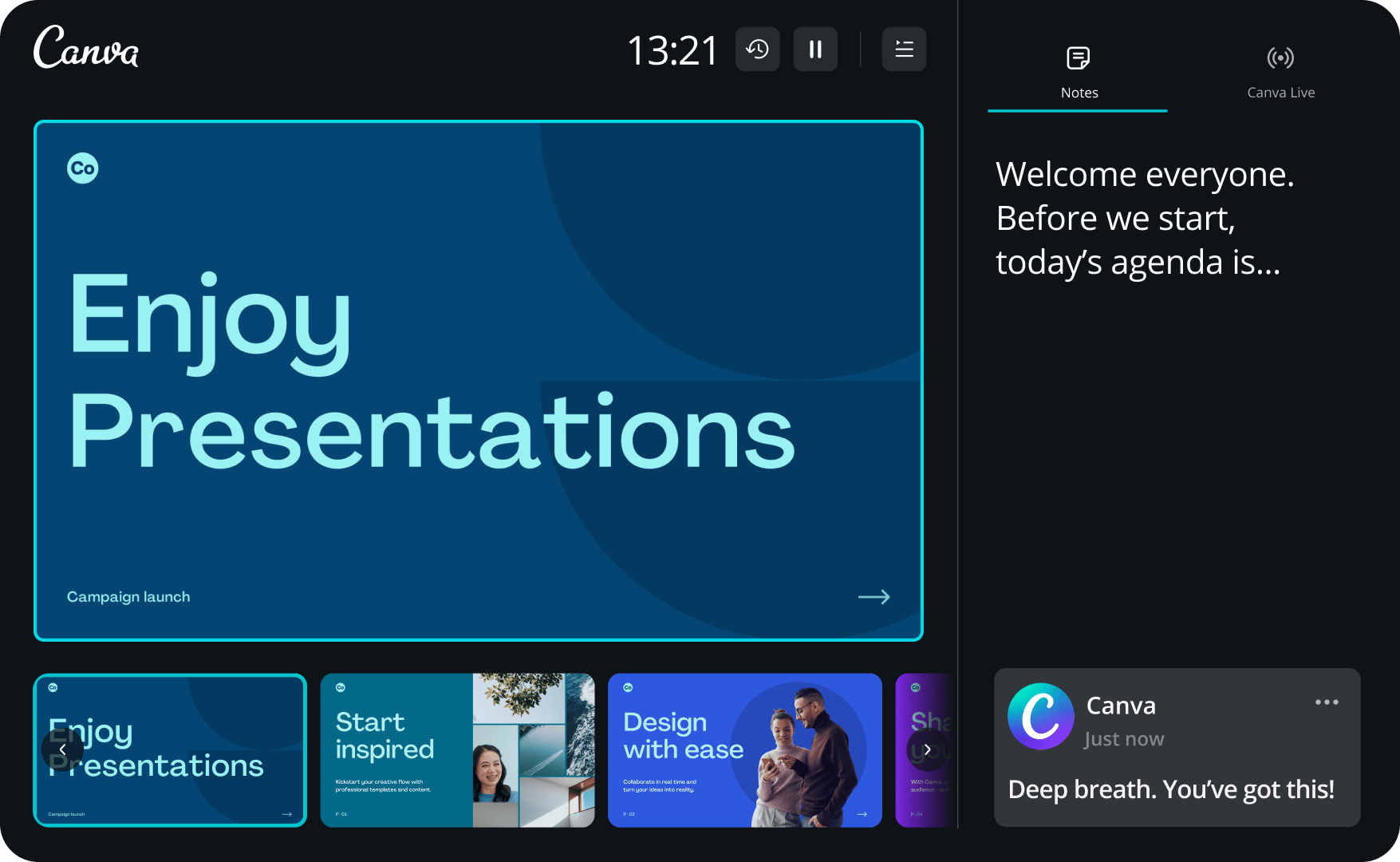
Your best presentation starts with you. Enter Presenter View mode, and get your own private presenter screen to view your notes or a script (no clunky cue cards), plus a timer, and a preview of your upcoming slides.
Ready when you are
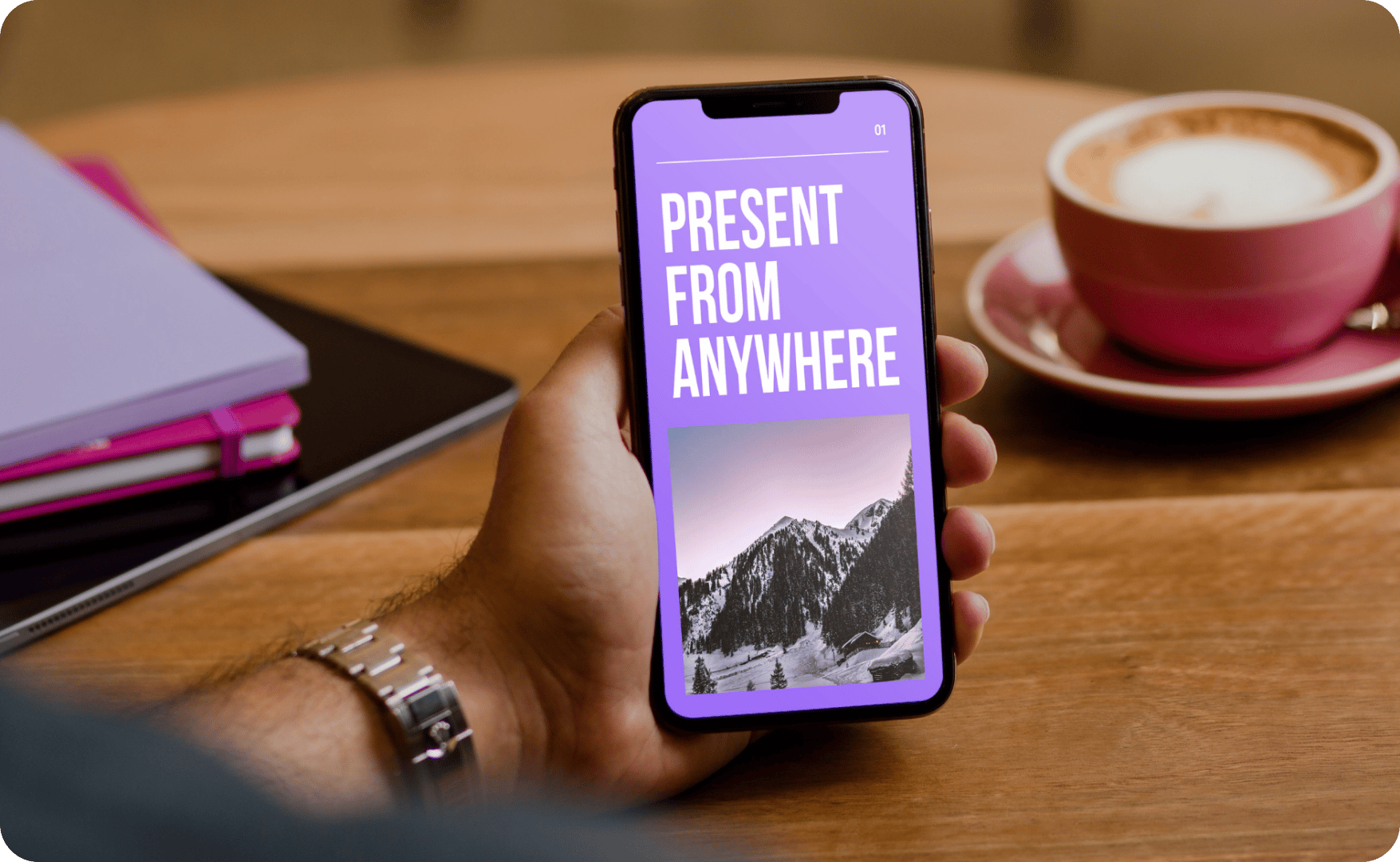
Present from anywhere. With no program to install, you can easily access your Canva slides on any browser or mobile device, and design, edit, or present on the go. Need a seamless way to share? Export files as a PowerPoint, PDF, or video presentation.

Captivate the crowd
Wow every audience. Surprise and delight with Magic Shortcuts – press the C key to send confetti streaming across the screen. For an interactive presentation experience, use Canva Live to get questions from your audience. To save time, share a pre-recorded Talking Presentation that can be shared endlessly.
How to make your presentation
Choose a presentation template or create your own from blank
Customize with colors, fonts, and key information
Add animations, videos, images, and illustrations
Share with your team and collaborate in real time
Hit Present or Record to wow your audience
Everything you need to know about presentations


Discover more about creating amazing, custom presentations using Canva.
Learn how to collaborate, maximize audience interaction and present anywhere with Canva Presentations.
With our handy dimensions guide, you’ll be creating pixel-perfect presentations with ease.
Frequently asked questions
What should a professional presentation include?

A professional presentation has two key components: Captivating visuals and easy-to-digest information.
To give you a headstart on creating captivating visuals, Canva is full of eye-catching templates, relevant to a variety of presentation topics, and images to support the information you’re presenting. We have thousands of free images, illustrations, and other types of visuals to make your presentation stand out.
It’s also important to simplify the information you’re presenting. Being selective about the keywords you put on your slides will make your presentation easy to read and understand. You can follow the 6 × 6 rule, which suggests having no more than six bullet points and no more than six words on each bullet per slide.
How can I add my own images and videos to my presentation design?

It’s easy! Simply open the Uploads tab on the dashboard and drag your desired image or video file from your device. Once it’s uploaded, drag it into your presentation or click on it to add it to your design.
How do I create a recorded presentation?
To create a Talking Presentation, click the three dots on the top right corner of your screen, and select ‘Present and record.’ Then click ‘Go to recording studio,’ where you can choose the video and audio source for your video presentation. Alternatively, choose the ‘No camera’ option and record your voice only — perfect for bad hair days. Finally, select ‘Start recording’ to begin recording yourself, taking your audience through your presentation in your own time.
How do I start a live Q&A session while presenting?
Canva Live enables you to crowdsource questions and comments from your audience in real time, while presenting through Canva. Your audience can join directly from their mobile, tablet, or desktop device. No app installation required.
There’s no need to rush. To help you feel prepared between slides, you can press pause between takes. When you finish talking through your work, you’ll instantly have a video of you presenting your captivating slideshows. Download your video presentation in MP4 file format or get a link to your Talking Presentation and share it with others. With a shareable link to your recorded presentation, viewers can move between slides at their own pace or go back and forth between slides to relisten to any points you’ve made.

How do I add and view my presenter notes?
To start a Canva Live session, open your presentation design, click on Present and go into presentation mode (full screen). Click on the Canva Live button (it looks like a dot with two curved lines on either side). Click the Start new session button. This will generate a code that you can share with your audience. Ask them to visit https://canva.live on their web browser and use the code to join your live session. Now your audience can send in their questions or answers and see them on screen.

Adding notes to your slides can give you that extra level of comfort and confidence, knowing that you've got a script or key phrases as a cue right on your screen (no more messy cue cards!). To add notes to your slides, click on the Notes button (which looks like a sticky note), found on the lower left of the editor screen. A blank space will open up, allowing you to type in notes or a full script for each slide.
What are the different Magic Shortcuts you can use when giving presentations?
Add some magic and boost audience interaction with the following keyboard shortcuts:
To view and use your notes while presenting, go to presenter view. Click on the Present button and choose Type > Presenter view. Two windows will pop up – one for your audience with the standard presentation view and one for you. Your window will show your notes, a timer, and a preview of the upcoming slides, so you are in complete control and confident of what comes next.
• Press Q - Quiet your audience with the shush emoji, 🤫, which appears with a quick “shh” sound
• Press B - Blur the screen to focus your audience’s attention or make a big reveal
• Press D - Build anticipation with a drumroll 🥁




• Press C - Wow your audience by sending confetti streaming across the screen
• Press O - Make bubbles appear and float across your slide
• Press any number from 1 to 9 - To start a countdown timer for that amount of minutes you clicked
+60M customers trust Canva Worldwide
• Press the shortcut key again to remove or stop the effect.
Presentations
Create captivating presentations with ease on Canva. Use our professionally-made templates to design and deliver powerful presentations. No design skills or installations required – just you, your genius, and your desire to create.


